OpsVue · Workflows & Automations
Build the process once. Let OpsVue carry it forward.
Workflows describe how your work actually moves — the steps a job passes through from first quote to complete, with the documents, tasks, and decisions each step expects. Once it's drawn, anyone on the team can see the exact step a job is on.
Automations ride on top: ready-made SOPs like deposit nudges and follow-ups that draft the message from your wording and hold it in your approval inbox. Nothing sends until you approve it.
The process lives in one person's head, so it runs only when that person has a quiet week — and quiet weeks are when it matters least.
Follow-ups depend on remembering: quotes sit unanswered for two weeks because nobody nudged on day three.
A quiet client and a declined job look identical in the pipeline; both just sit there.
Every job runs in a slightly different order, so steps get skipped and nobody notices until the client does.
The automation you've tried either sent emails you never reviewed or fired generic reminders with no connection to the job.
The process is mapped once as a workflow: document steps, client requirements, operational steps, and follow-ups in the order your operation actually runs.
Timed steps fire from real anchors — days after sending, quiet days without a response, days before the booking.
Outcomes fork the path: acceptance moves the job forward automatically, a change request takes its own lane, silence stages a nudge, a decline closes out cleanly.
Every job shows where it stands on the map, computed from what actually happened rather than a status somebody forgot to update.
Automations draft the emails, create the tasks, and set the reminders — and every client-facing email waits in an approval inbox until you send it.
The foundation
The foundation for every Workflows & Automations workflow.
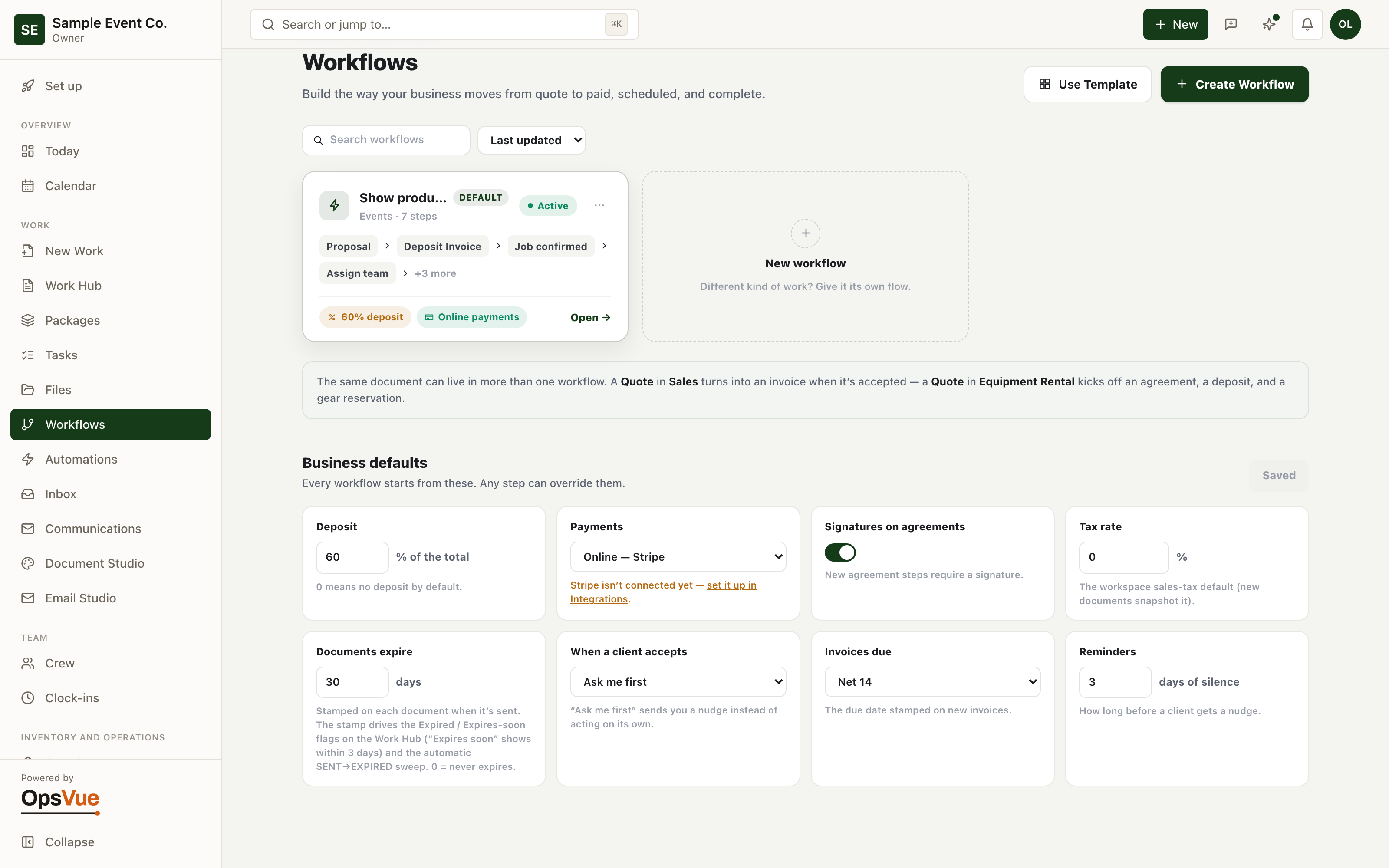
Business defaults
Every workflow starts from your business defaults — deposit, payments, expiry, reminders. Any step can override them.
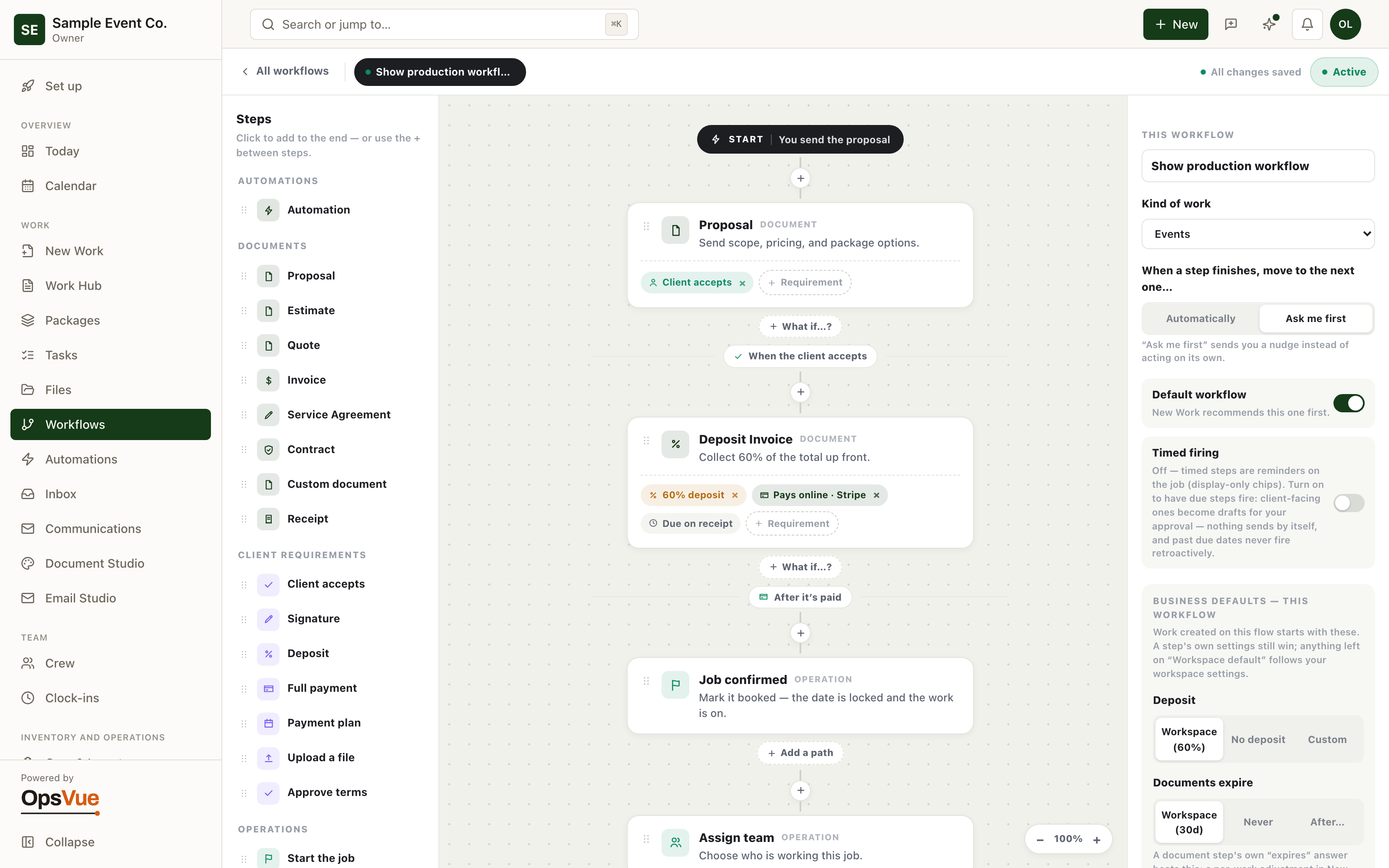
Build your workflow
Design how a job moves from start to complete — the paper trail closes itself, so anyone can see the exact step a job is on.
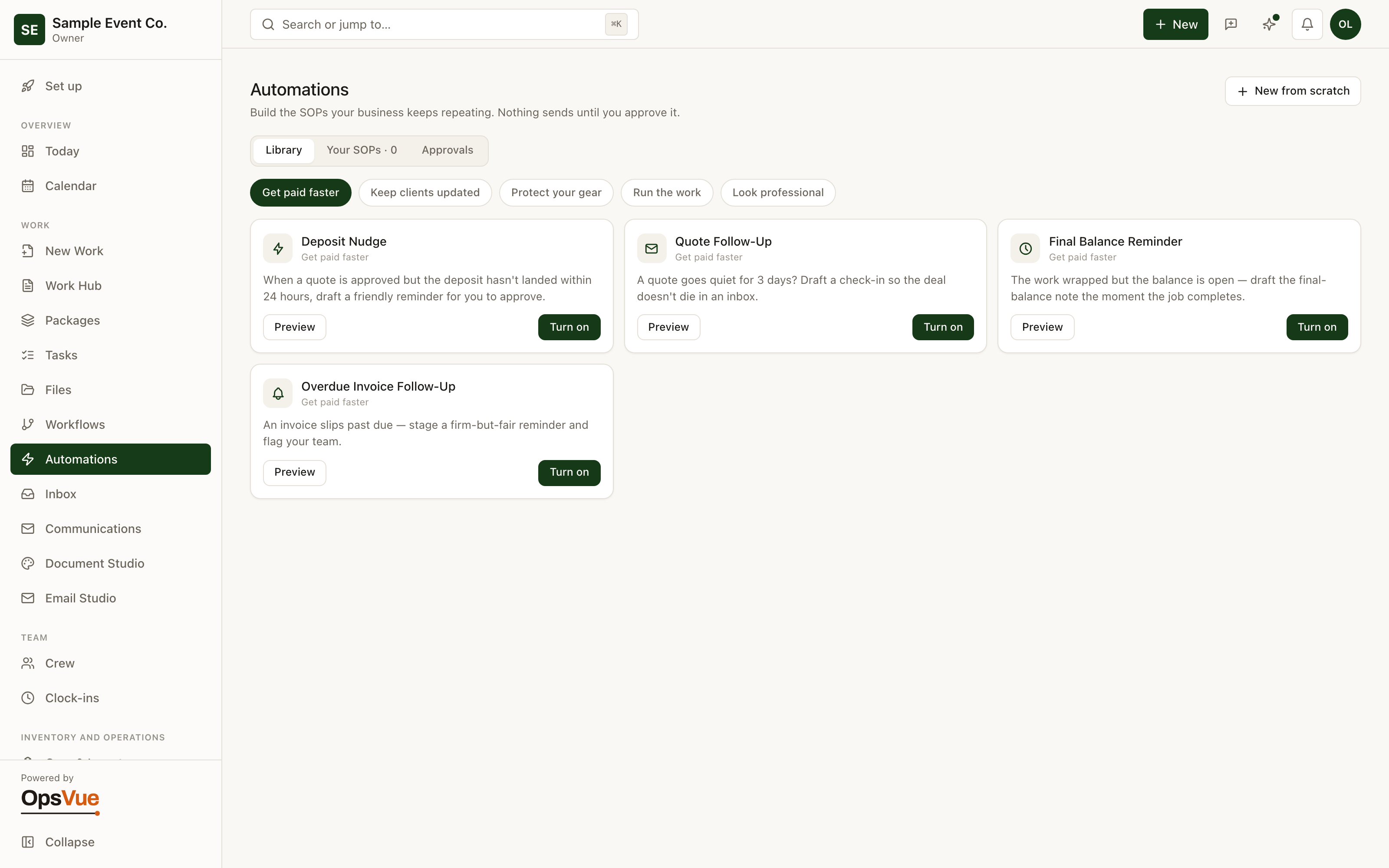
Automation library
Turn on ready-made SOPs — deposit nudges, follow-ups, reminders. Nothing sends until you approve it.
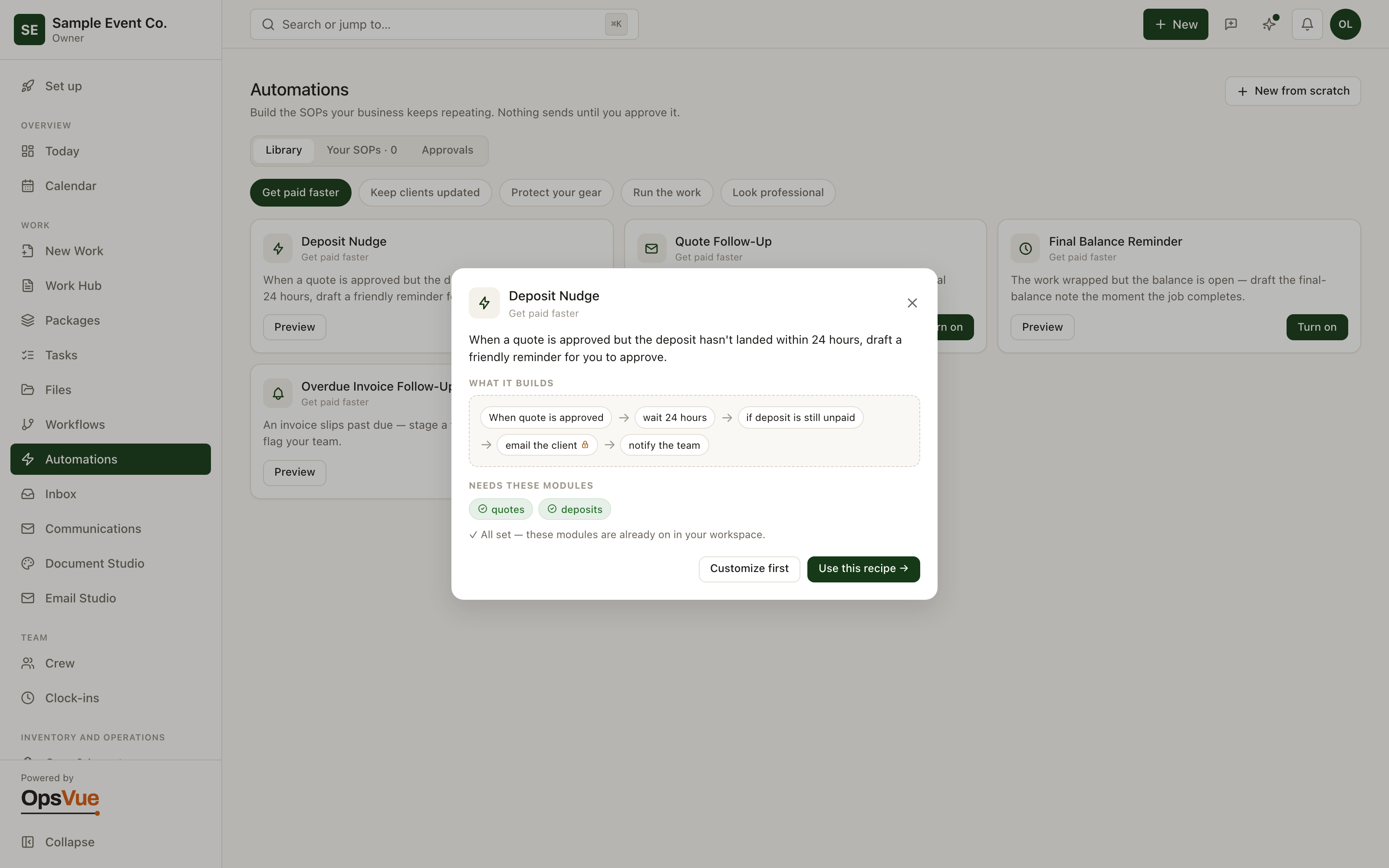
Build an automation
Set it once: if a deposit is late with no response, OpsVue drafts the reminder email from your wording — ready in your approval inbox.
And around it
Plus everything you need to get it done.
Assemble workflows from real steps: documents to send, client requirements like acceptance or deposit, operational steps like reserving items, scheduling, and creating tasks, and follow-ups like reminders and thank-yous. Name the workflow, reuse it, refine it as the operation matures.
Every document step can branch: if they ask for changes, if there's no response after a number of quiet days, if they decline, if the document expires, if a payment runs overdue, if items come back damaged. You decide each lane once instead of improvising it per job.
A job's position on the map is derived from what really happened (the send, the view, the acceptance, the payment), never from a checkbox someone had to remember. When a client accepts on their link, the workflow advances on its own.
Timed steps anchor to real dates: the send stamp, the response, the booking itself. A send window keeps activity inside your working hours, and each workflow arms only when you say it's ready.
When a workflow or automation wants to email a client, it stages a draft in your approval inbox, built from your email templates. You read it, adjust it, and send it — or don't. Nothing reaches a client without a person deciding it should.
Trigger on moments like a first-time client, add conditions, defer to business hours, and exclude specific clients. Automations also mint real tasks that carry a record of why they exist — reruns never spawn duplicates.
The workflow a job runs on tells the app what matters: the work record surfaces the current step, the requirements still open, and the pieces that are missing, so the next action is always visible.
Go deeper: Workflows & Automations — the operational problem this solves, end to end.
Workflows & Automations are just the beginning.
Every part of OpsVue runs in the same system, connected to the same work — so each piece you turn on makes the rest more useful.
No credit card required.